Survey settings
Overview
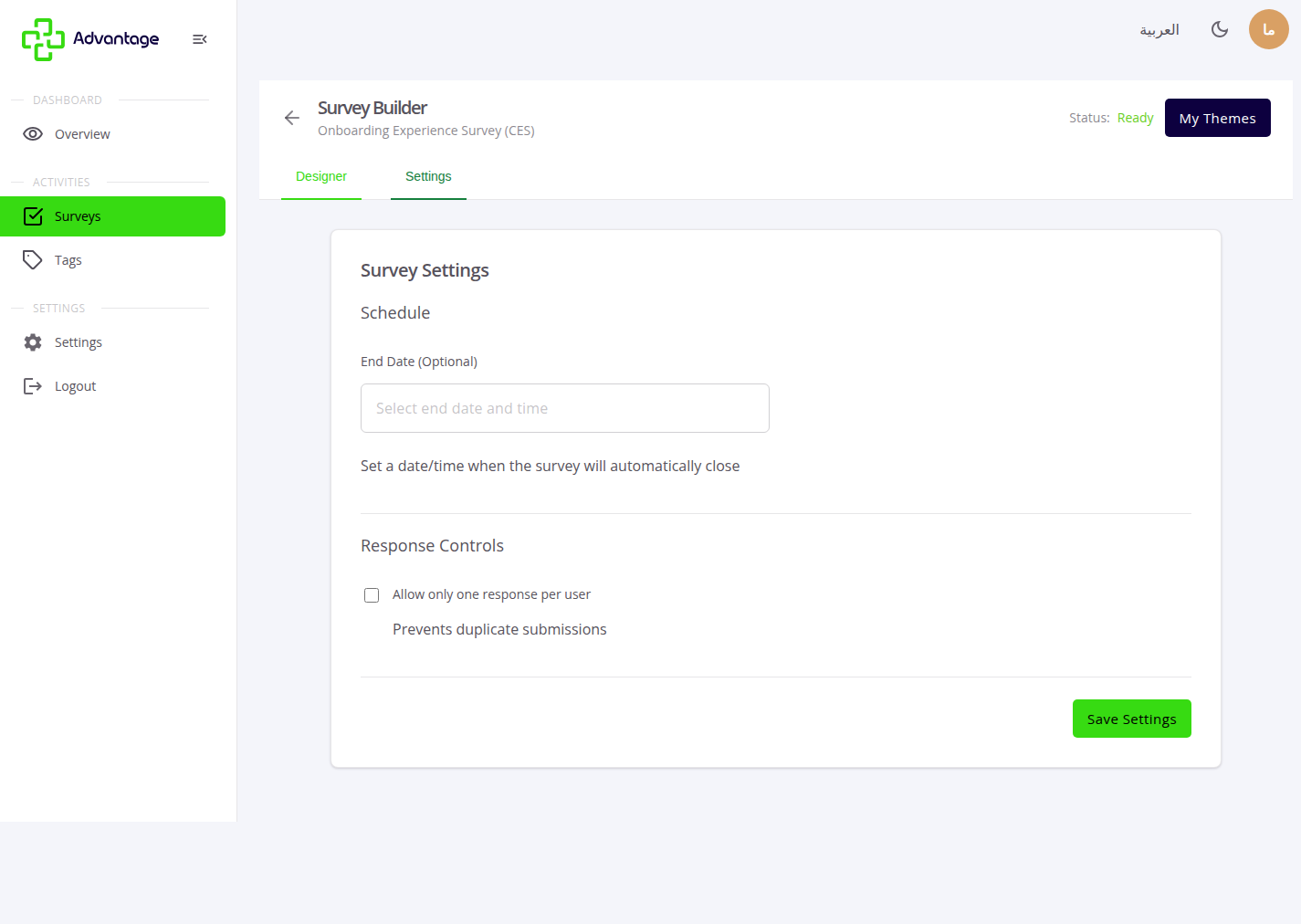
The Settings tab has just two options that control how your survey behaves: an end date that auto-closes the survey, and submit once, which limits each person to a single response. The completion message, navigation buttons, progress bar, and timer are configured in the SurveyJS Designer (the builder), not in this tab.
When to use it
- You want the survey to stop collecting responses on a certain date.
- You want to limit each person to a single response.
Before you start
- Open the survey in the builder — settings live in its Settings tab.
- Decide your two rules: closing date, and one response per person.
Step by step
-
Open the Settings tab in the builder.
-
Set an end date if the survey should close automatically.
-
Enable submit once to limit each respondent to a single response.
Good to know
What does the end date do? After the end date passes, the survey auto-closes and stops accepting new responses (see Publish & share).
How does "submit once" work? It limits duplicate submissions using both IP address and a browser cookie, so the same respondent can't easily submit a second response.
Where do I set the completion message and navigation? In the SurveyJS Designer itself — the builder. The post-submit message, navigation buttons, progress bar, and timer are all set there, not in this Settings tab.
Tips & pitfalls
Tip: Enable submit-once for surveys that should get one response per person, like NPS.
Warning: After the end date passes, the public link stops accepting new responses — extend the date if you need more time.
Next steps
Once your settings are set, head to Publish & share to make the survey live.