Responses
Overview
The Responses list shows every submission to your survey — its status and when it was submitted — with a way to open a single response and see every answer that respondent gave in detail, or delete it.
When to use it
- You want to see who answered and read individual responses.
- You need to clean up test or unwanted submissions.
Before you start
- The survey needs to be published and have at least one response to show.
- Decide whether you want to look at all responses or just completed ones.
Step by step
-
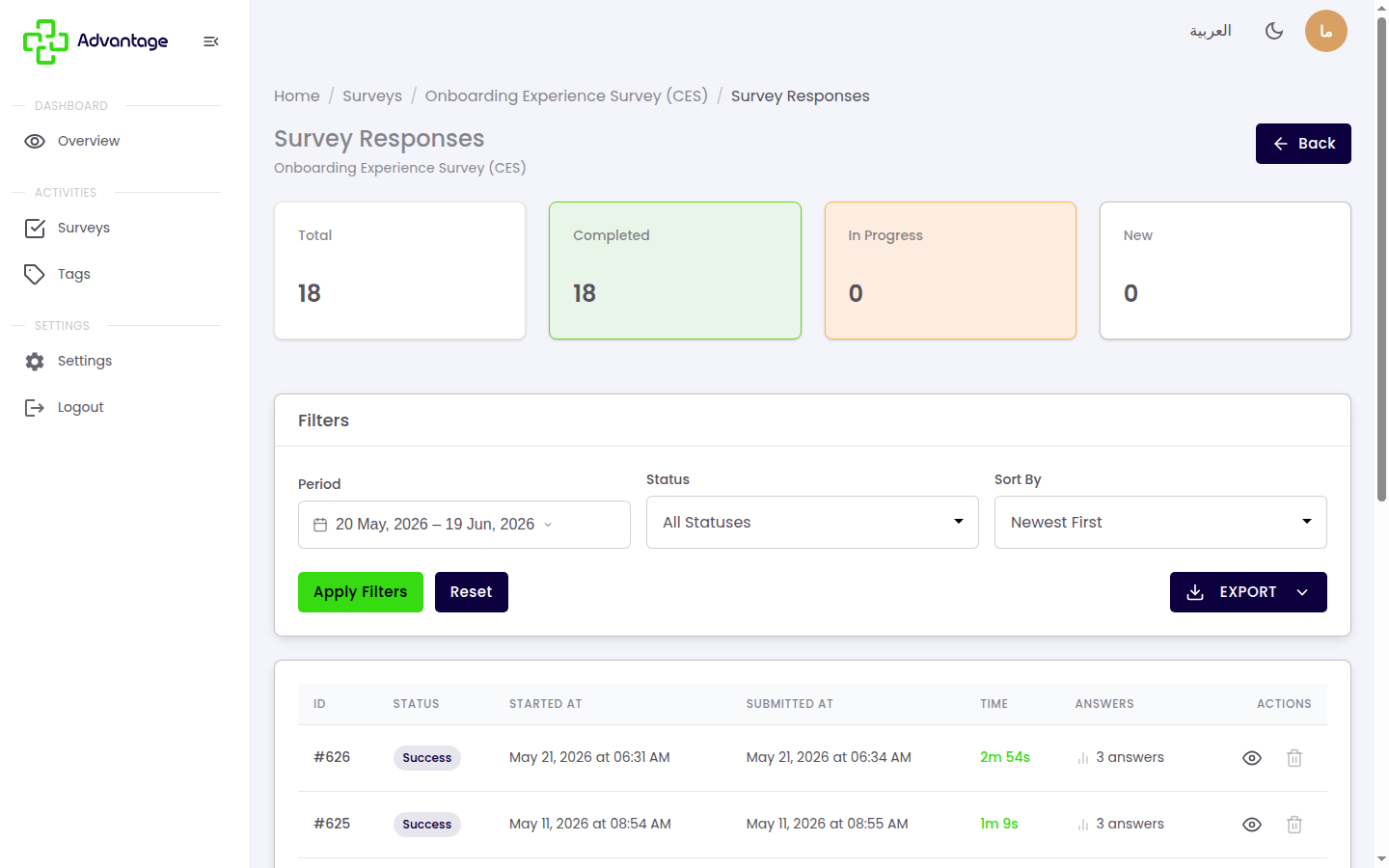
Open a survey's Responses to see the list of submissions with each one's status and timestamp.
-
Filter the list by status (new / partial / completed) or by date range to narrow what you see.
-
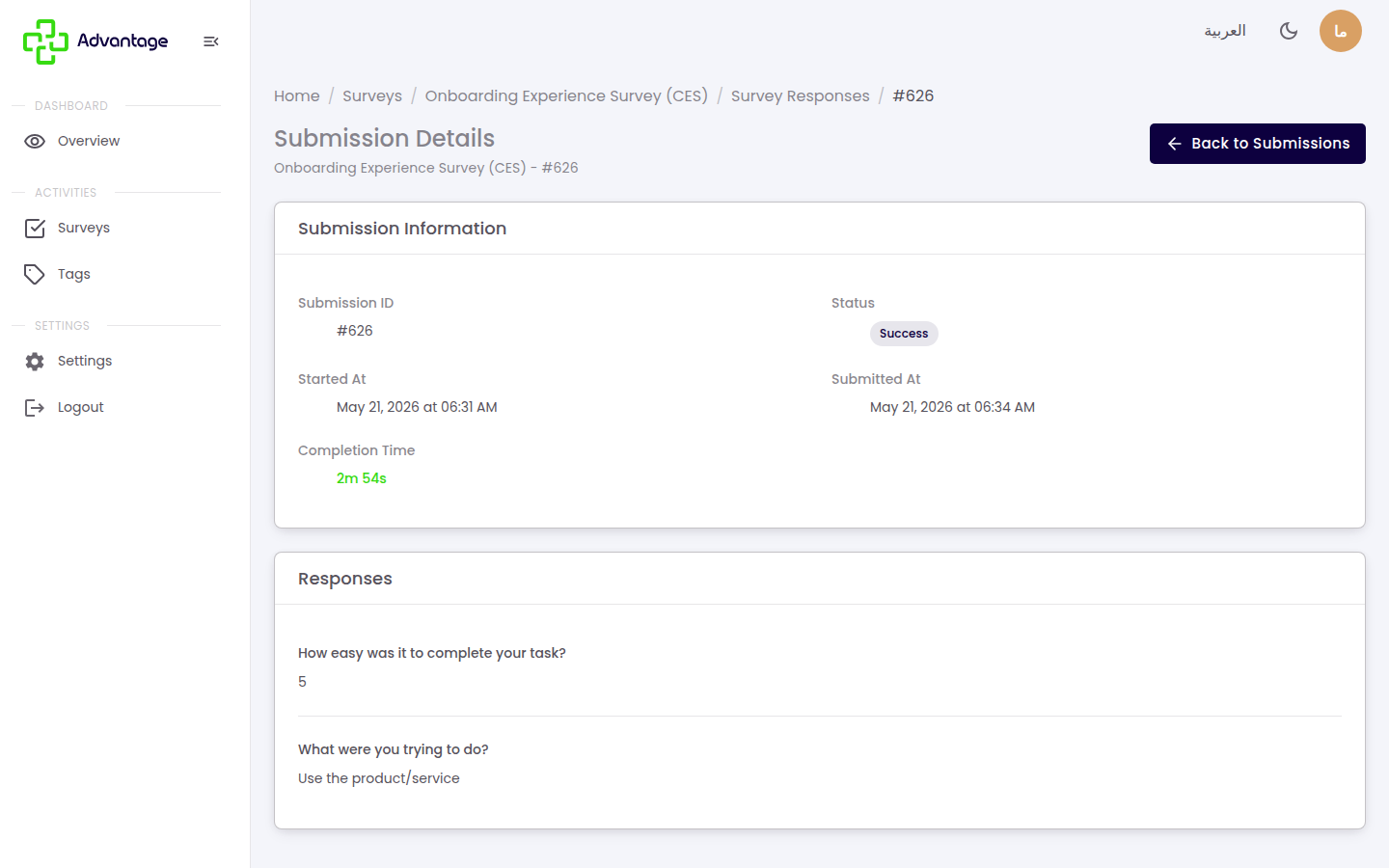
View one response in detail — open a submission to see every answer that respondent gave, along with its status and timestamps. You can delete a response from here.
Good to know
What do the statuses mean? Status is tri-state: new means the response was just opened with no answers recorded yet, partial means the respondent started answering but hasn't submitted, and completed means they finished and submitted.
What filters are available? You can filter by status (new / partial / completed) and by date range.
What does the detail view show? It shows the full set of answers for that submission.
What happens to responses when I duplicate a survey? Nothing — duplicating a survey copies its schema (its questions) only, not its responses. The new copy starts at zero responses.
Can I undo a deletion? No — deleting a response is permanent.
Tips & pitfalls
Tip: Filter the list to "completed" before opening individual responses for clean analysis.
Warning: Deleting a response can't be undone — double-check before removing one.
Next steps
See Analytics for the summary and scores, or export the responses to work with them outside the platform.