Organize surveys
Overview
As your list of surveys grows, filters and tags keep things tidy. You can search and filter the Surveys list, use Tags to group related surveys together, and then compare by tag to see results side by side.
When to use it
- You have lots of surveys and need to find one quickly.
- You want to group surveys by quarter, campaign, or team.
Before you start
- You'll need a few surveys created before organizing pays off.
- Decide on a simple tagging scheme so tags stay meaningful.
Step by step
-
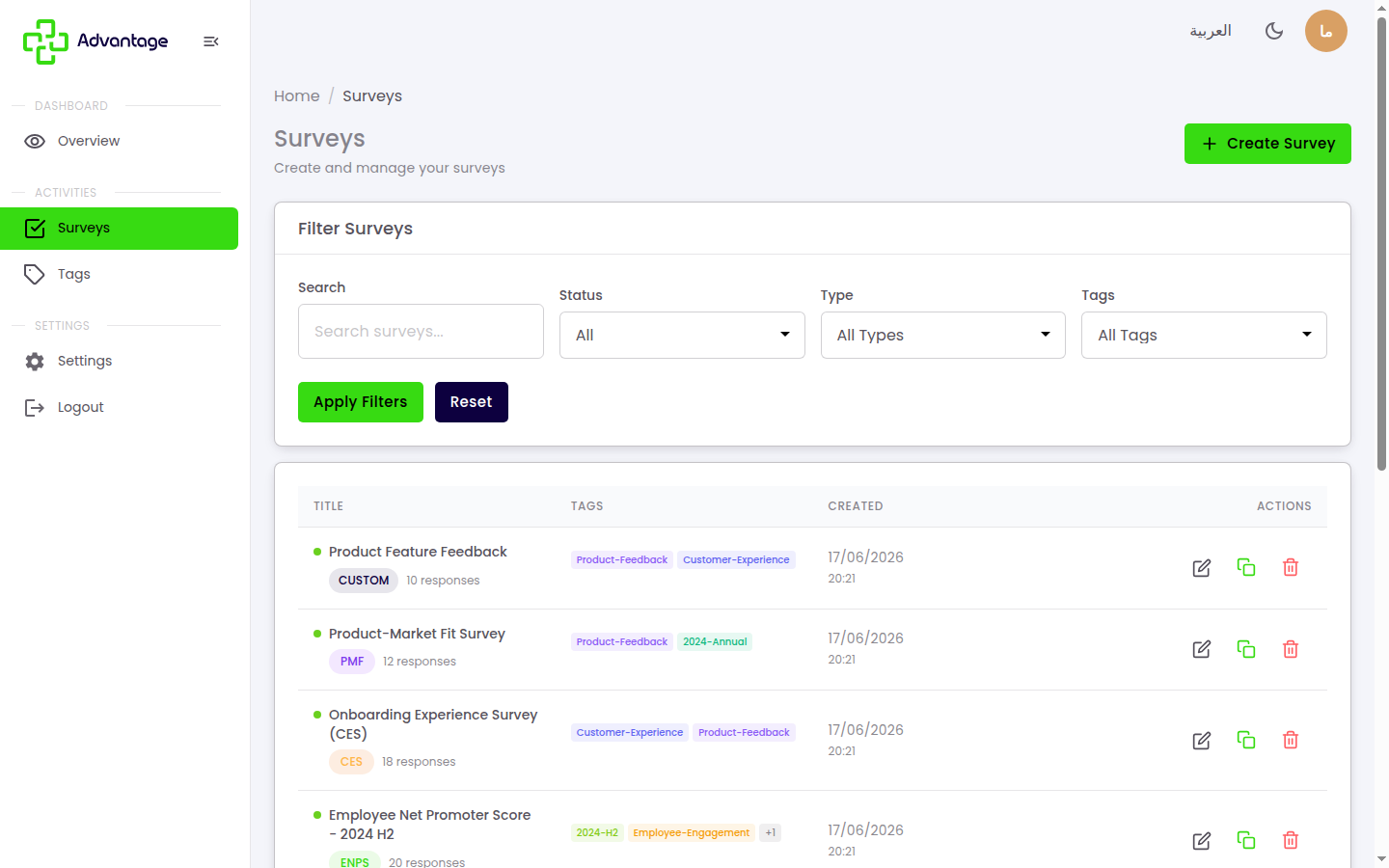
Open Surveys and use the filters/search to find a survey — filter by title (search), status (draft/published), type, tag, and date.
-
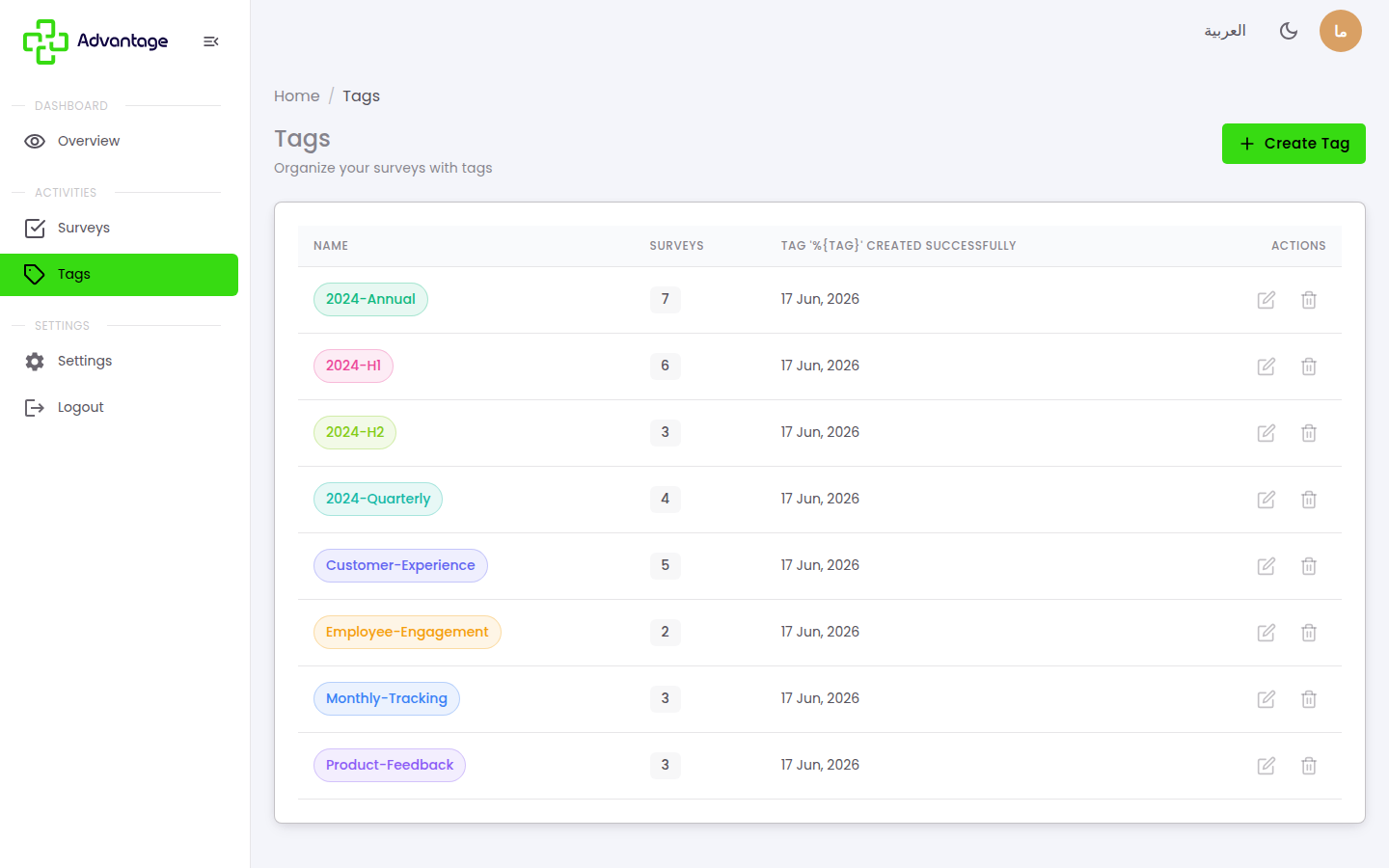
Open Tags to create, rename, or delete tags, then tag your surveys to group them.
-
Compare by tag — open the comparison view for a tag (e.g.
2024-Annual, which groups 7 surveys) to see those surveys' results side by side and spot trends over time.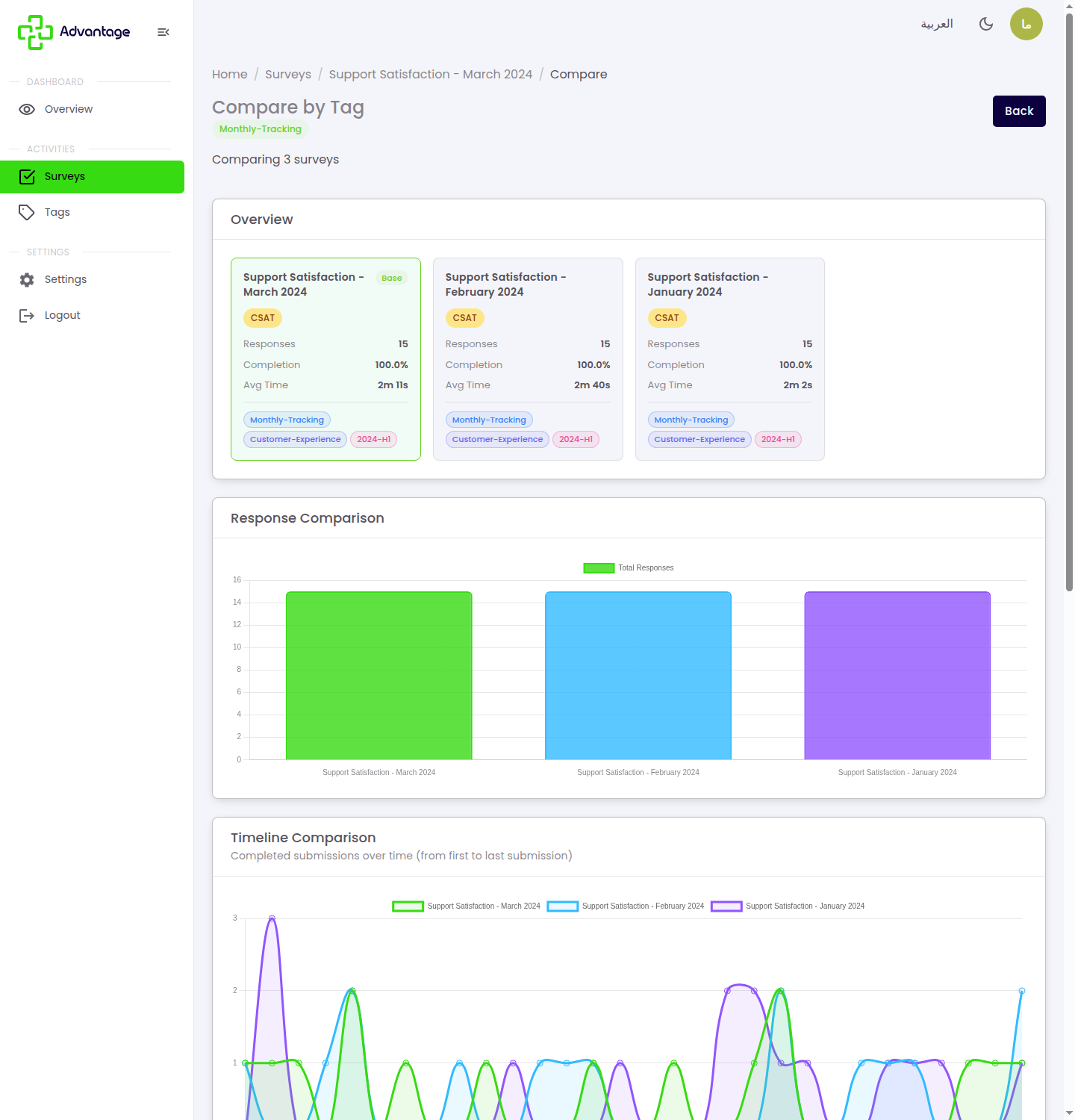
Good to know
What is tagging for? Tagging groups related surveys together (e.g. by year or campaign), and a single survey can have several tags.
How do I see change across multiple surveys? Comparing by tag is how you see change across multiple surveys — it shows results side by side so you can spot trends.
What's the difference between tags and status? Tags group surveys however you like. Status describes a survey's state — draft or published.
Tips & pitfalls
Tip: Use a consistent tag scheme — by quarter or campaign — so tags stay easy to use.
Warning: Deleting a tag removes it from all surveys, but it doesn't delete the surveys themselves.
Next steps
Open Analytics to see scores across surveys grouped by tag.