Export responses
Overview
When you want to analyze results outside the platform or build a report, you can export a survey's responses to a spreadsheet/CSV file or to JSON — optionally filtered by status or date.
When to use it
- You want to crunch responses in a spreadsheet or share them in a report.
- A developer needs the raw data in a structured format.
Before you start
- The survey needs responses to export.
- Decide the format and whether to filter by status or date range first.
Step by step
-
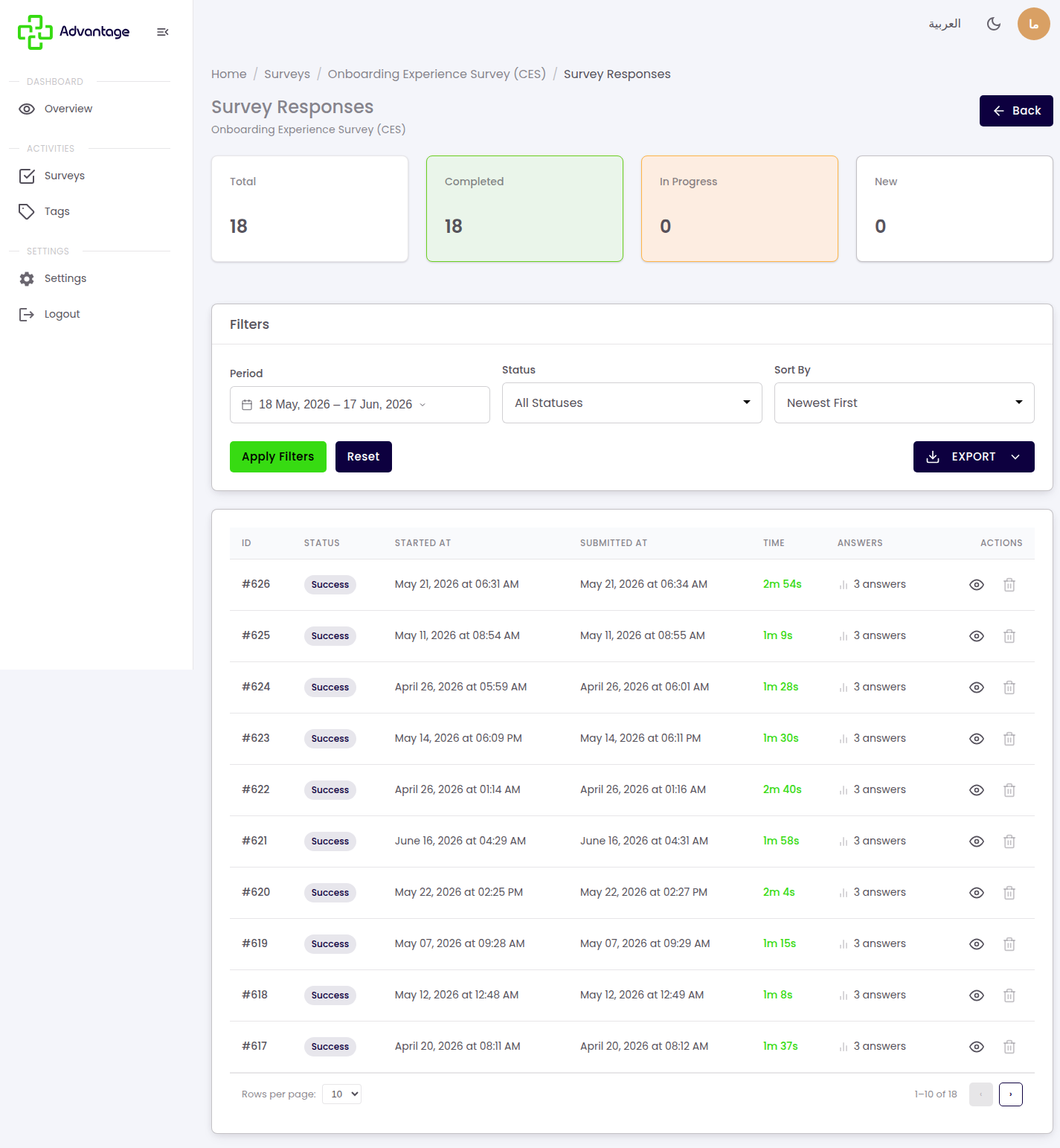
Open the survey's responses.
-
Choose Export.
-
Pick the format — spreadsheet/CSV or JSON — and apply any filters (status, date range).
-
Download the file.
Good to know
Which format should I pick? The spreadsheet/CSV option is best for spreadsheets and pivot tables. JSON is best for developers working with the data programmatically.
Do exports respect my filters? Yes — if you filter by status or date, the export includes only those responses.
What's in the file? Each answer plus submission metadata, such as status and submitted date.
Tips & pitfalls
Tip: Open the spreadsheet/CSV file in your favorite tool for quick pivot tables and charts.
Warning: Exported files contain raw response data — store and share them carefully.
ℹ️ Note: The "Excel" option exports a CSV file (not a true .xlsx workbook), but it opens in any spreadsheet app.
Next steps
For scores and charts inside the platform, see Analytics.