Design & themes
Overview
Themes control how your survey looks — its colors, fonts, and background. You can apply a ready theme, save your own to reuse, and set a default that new surveys start with.
When to use it
- You want your survey to match your brand's colors and style.
- You're building several surveys and want a consistent look without redoing it each time.
Before you start
- Have your brand colors and fonts handy if you want a branded look.
- Arabic surveys render right-to-left automatically — no setting needed.
Step by step
-
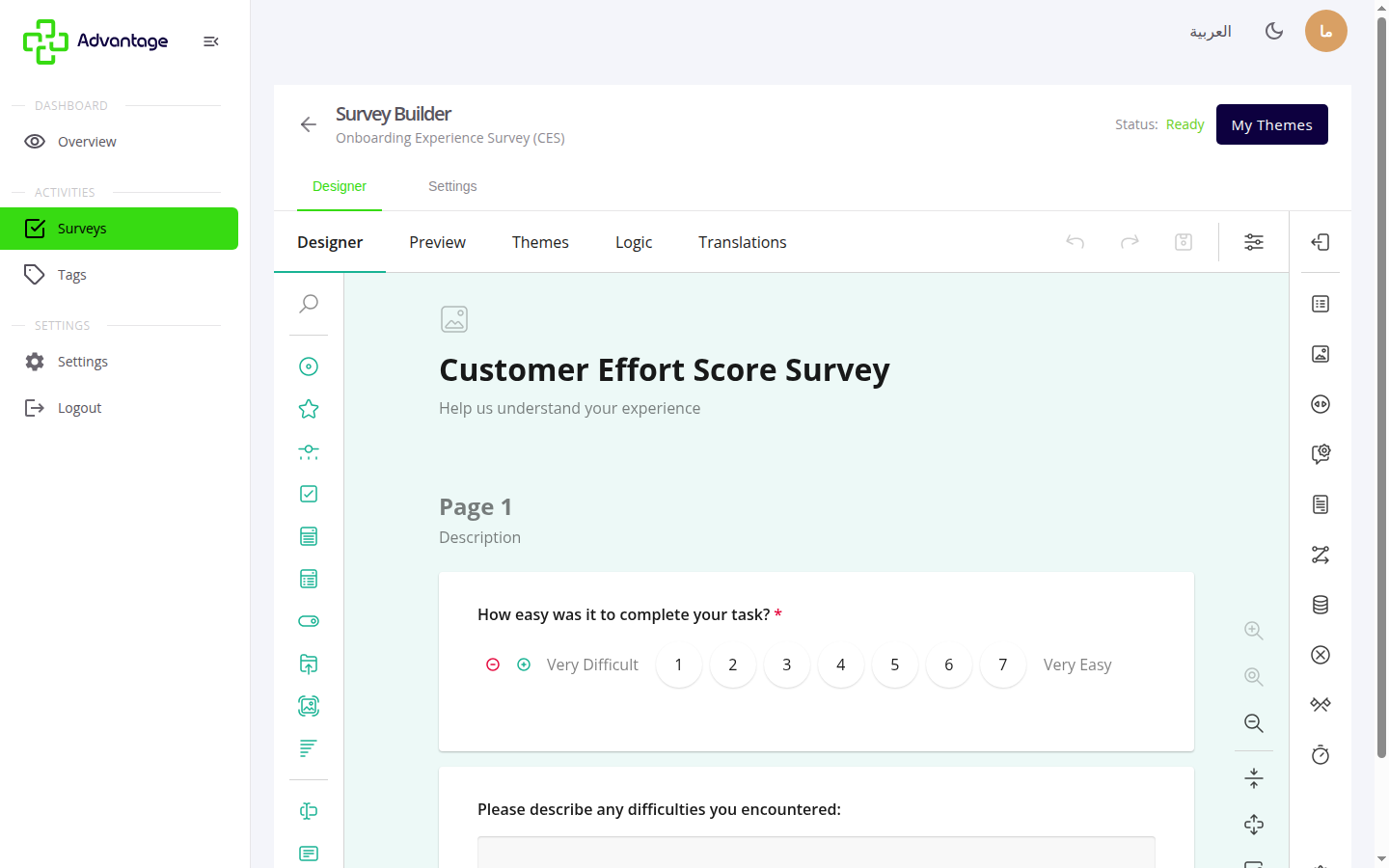
In the builder, open the theme/appearance options.
-
Pick a theme or customize one — adjust colors, fonts, and background.
-
Save it to My themes so you can reuse it on other surveys.
-
Optionally set a theme as the default for new surveys.
Good to know
Can I reuse a theme across surveys? Yes — save it to My themes and apply it to any survey, so your look stays consistent.
Do I need to set up right-to-left for Arabic? No — Arabic surveys render right-to-left automatically.
What does setting a default theme do? New surveys you create will start with that theme applied, saving you the setup each time.
Tips & pitfalls
Tip: Match your brand colors for a professional, recognizable look.
Warning: Very low color contrast hurts readability — keep text legible against the background.
Next steps
Once the look is set, configure Settings, then publish the survey.