Dashboard
The entire Survey module requires an active Survey subscription. When the subscription expires, the module becomes read-only — you'll still see your surveys and responses, but you can't make changes until you renew ("Renew to make changes"). Individual Survey features are not separately paywalled.
Overview
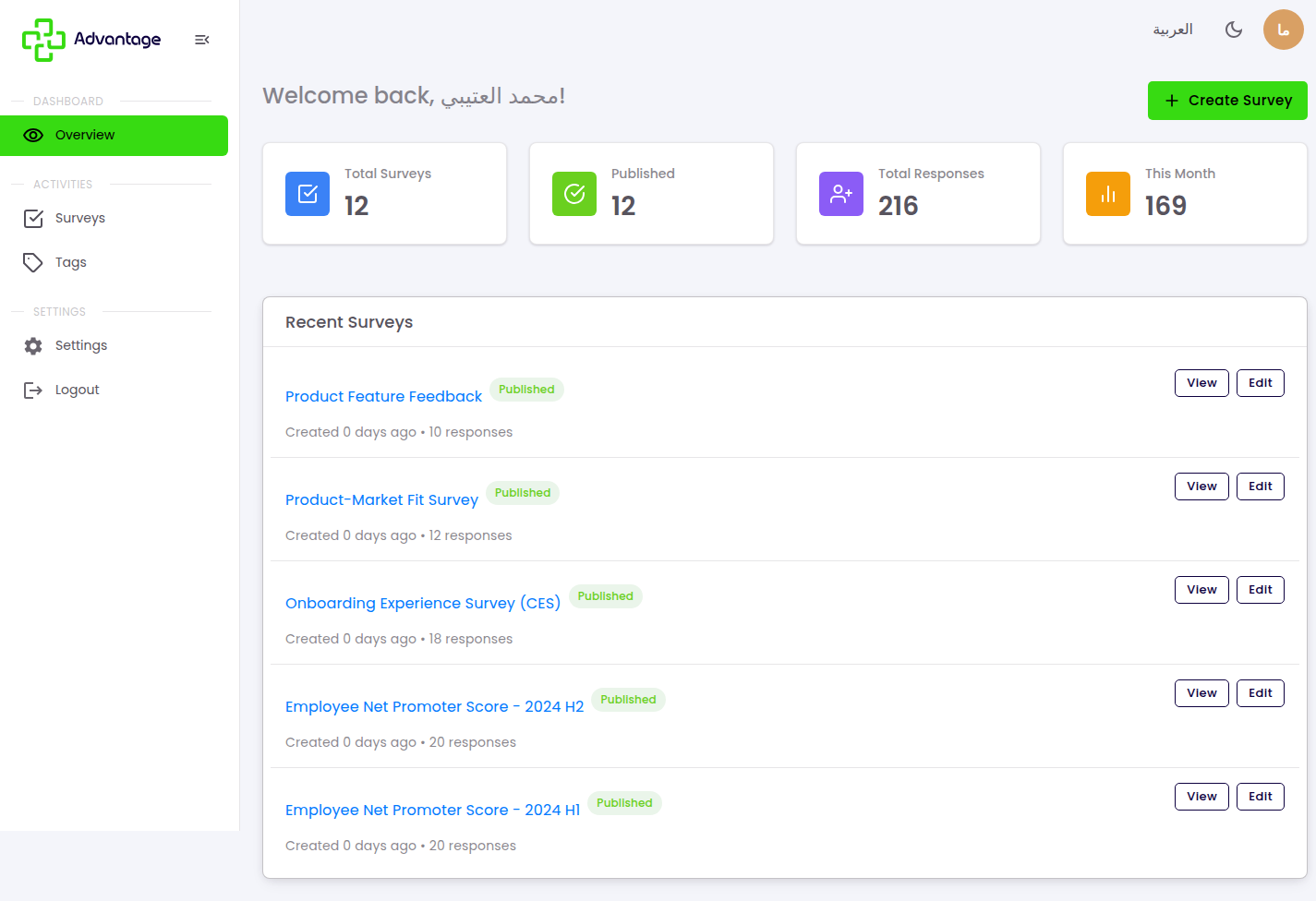
The Survey overview gives you a snapshot of all your surveys — how many you've built, how many are live, and how many responses you've collected — with a quick way to open a recent survey or start a new one.
When to use it
- You want a quick health check of all your surveys in one place.
- You're about to create a new survey or jump back into a recent one.
Before you start
- You need at least one survey created so there's data to show.
- Response counts fill in over time — a brand-new survey may show zero until people start answering.
Step by step
-
Open Survey to land on the Overview.
-
Read the stat cards: Total Surveys, Published, Total Responses, and This Month.
-
Scroll the Recent Surveys list — each row shows the survey's status and its response count.
-
Open a recent survey to keep working on it, or choose Create Survey to start a new one.
Good to know
What does the "This Month" card count? It shows the responses collected during the current month, so you can see recent activity without digging into each survey.
What's the difference between Total Surveys and Published? Total Surveys counts everything you've built, including drafts. Published counts only the surveys that are live and able to collect responses.
Why do some recent surveys show zero responses? They're either still drafts or newly published — responses only appear once people start answering.
Tips & pitfalls
Tip: Use the Recent Surveys list to jump straight back into the survey you were last working on.
Warning: A high Total Surveys count with few Published means most of your work is still in draft — remember to publish before sharing.
Next steps
Start by creating a survey, then configure Settings and publish it.