QR codes
Overview
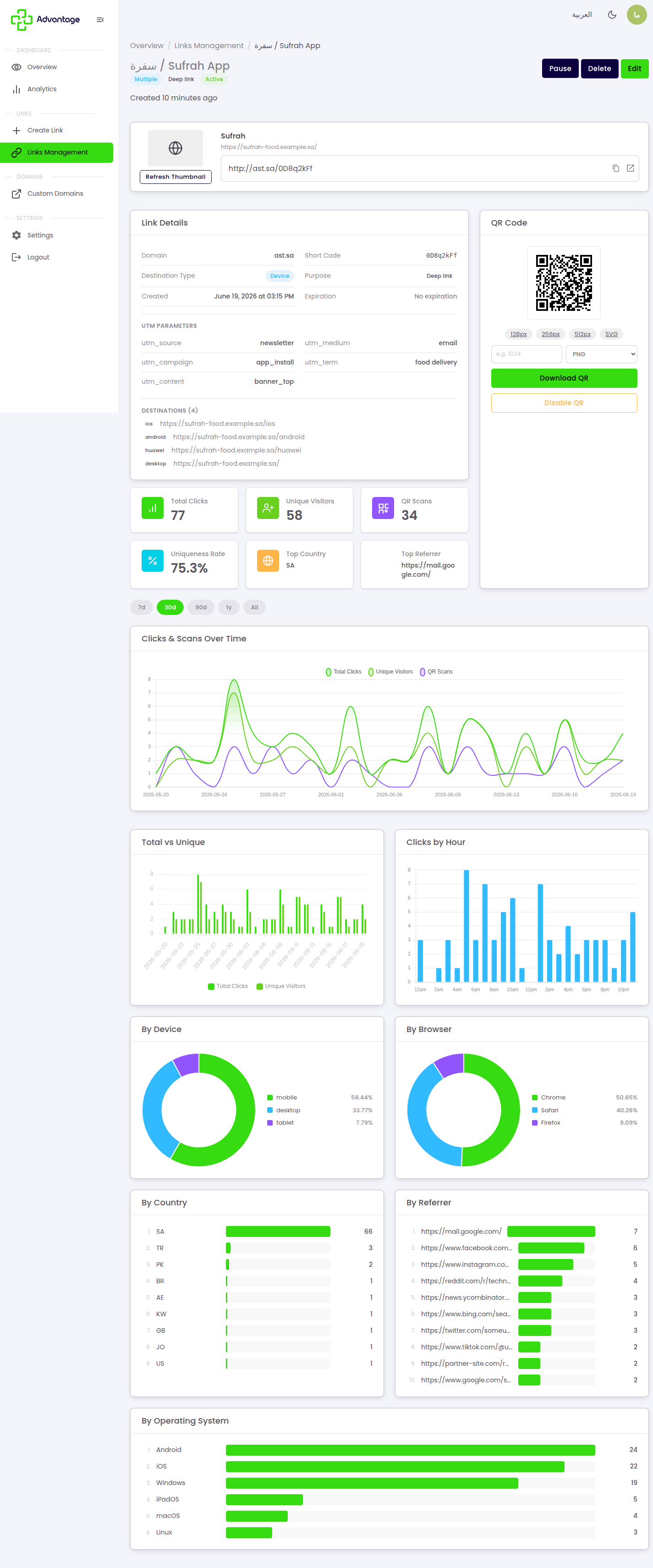
Every link can have a QR code you can download and print. QR scans are tracked separately from direct clicks, so you can measure offline campaigns.
When to use it
- You're putting a link on a poster, packaging, or business card.
- You want to know how many people found you by scanning rather than clicking.
Before you start
- Create the link first — the QR code lives on the link's detail page.
- Decide where the QR will appear so you can pick the right download size.
Step by step
-
Open a link from Links Management. On its detail page, find the QR code card. Generate the code, then download the image to print or place in your designs. You can disable it later if you stop using it.
The number of QR codes and scan limits count against your plan's quota. Once you reach the quota, generating new codes is blocked until you upgrade.
Good to know
How are QR scans different from direct clicks? They're counted separately, so you can measure print and offline campaigns apart from online ones.
Where do I use the downloaded file? Anywhere a printed code makes sense — posters, packaging, signage, business cards.
Does disabling a QR delete the link? No. Disabling the QR only stops the code from working; the link itself keeps redirecting.
Tips & pitfalls
Tip: Test the printed QR with your phone before mass-printing.
Warning: If you disable the QR, existing printed codes stop working.
Next steps
- Analytics — to track scans separately from clicks.
- Managing links — to manage the link the code belongs to.