Managing links
Overview
Links Management lists all your links in one table, where you can search, filter, edit, and retire them.
When to use it
- You need to find, edit, or copy an existing link.
- You want to pause, activate, or archive links.
Before you start
- You need at least one link created.
- Know whether you want to pause a link temporarily or archive it for good.
Step by step
-
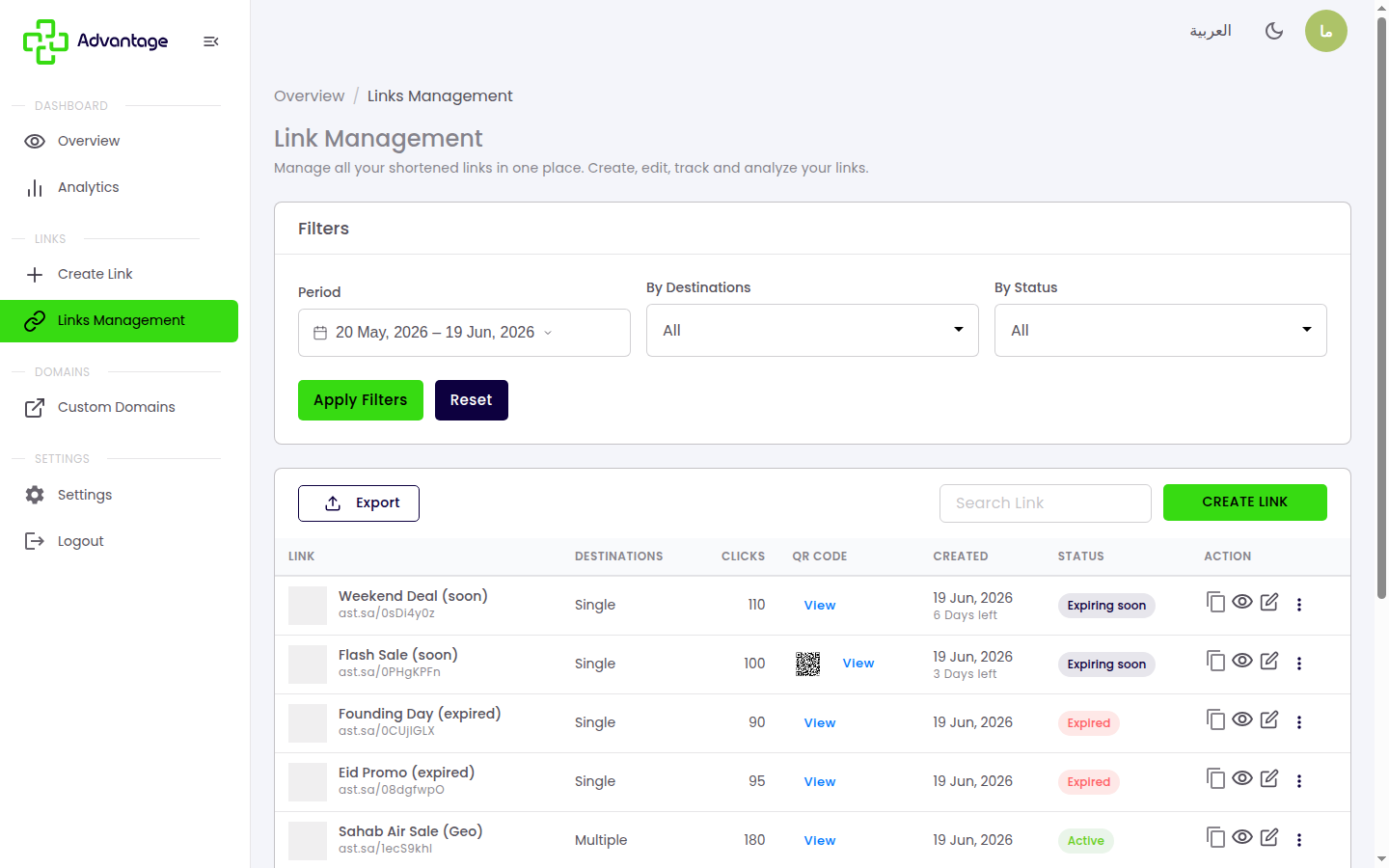
Open Links Management to see all your links with columns for Link, Destinations (single/multiple), Clicks, QR, Created, Status, and Actions. Use the period, destinations, and status filters (Active, Inactive, Expiring soon, Expired), plus search and export, to find links.
-
Open a link's Actions to pause, activate, or archive it. Use Copy URL to share a link, or View and Edit to inspect and change it (including changing the expiry date).
Good to know
What does "Expiring soon" mean? The link expires within 7 days. It's a heads-up to extend its expiry date before it stops redirecting.
When do links expire? Links expire 1 month (30 days) after creation by default, capped by your plan. You change the length via Edit → expiry date.
What's the difference between pausing and archiving? Pausing turns a link off temporarily; you can switch it back on. Archiving hides and retires the link from redirecting.
Does the "Delete" button permanently delete the link?
No. "Delete" actually archives the link (there is no hard delete). Archived links stop redirecting, and visitors are sent to advantage.sa (see What visitors see).
Do expired links still work?
No. Expired links stop redirecting visitors, who are sent to advantage.sa.
Tips & pitfalls
Tip: Name and tag links clearly so search finds them fast.
Warning: Archived and expired links no longer redirect visitors — they redirect to
advantage.sainstead.
Next steps
- What visitors see — to understand what happens to expired or archived links.
- Analytics — to track how your links perform.