Create links in bulk (CSV)
Overview
Create many links at once by uploading a CSV file, instead of adding them one by one.
When to use it
- You have a long list of URLs to shorten for a campaign.
- You're migrating links from another tool.
Before you start
- Download the template first so your columns line up.
- The columns are: URL, Slug, Name, UTM Source, UTM Medium, UTM Term, and UTM Content.
Step by step
-
Open Create Link and choose Bulk Upload. Download the template, fill one row per link, upload the CSV file, and review the success/error results.
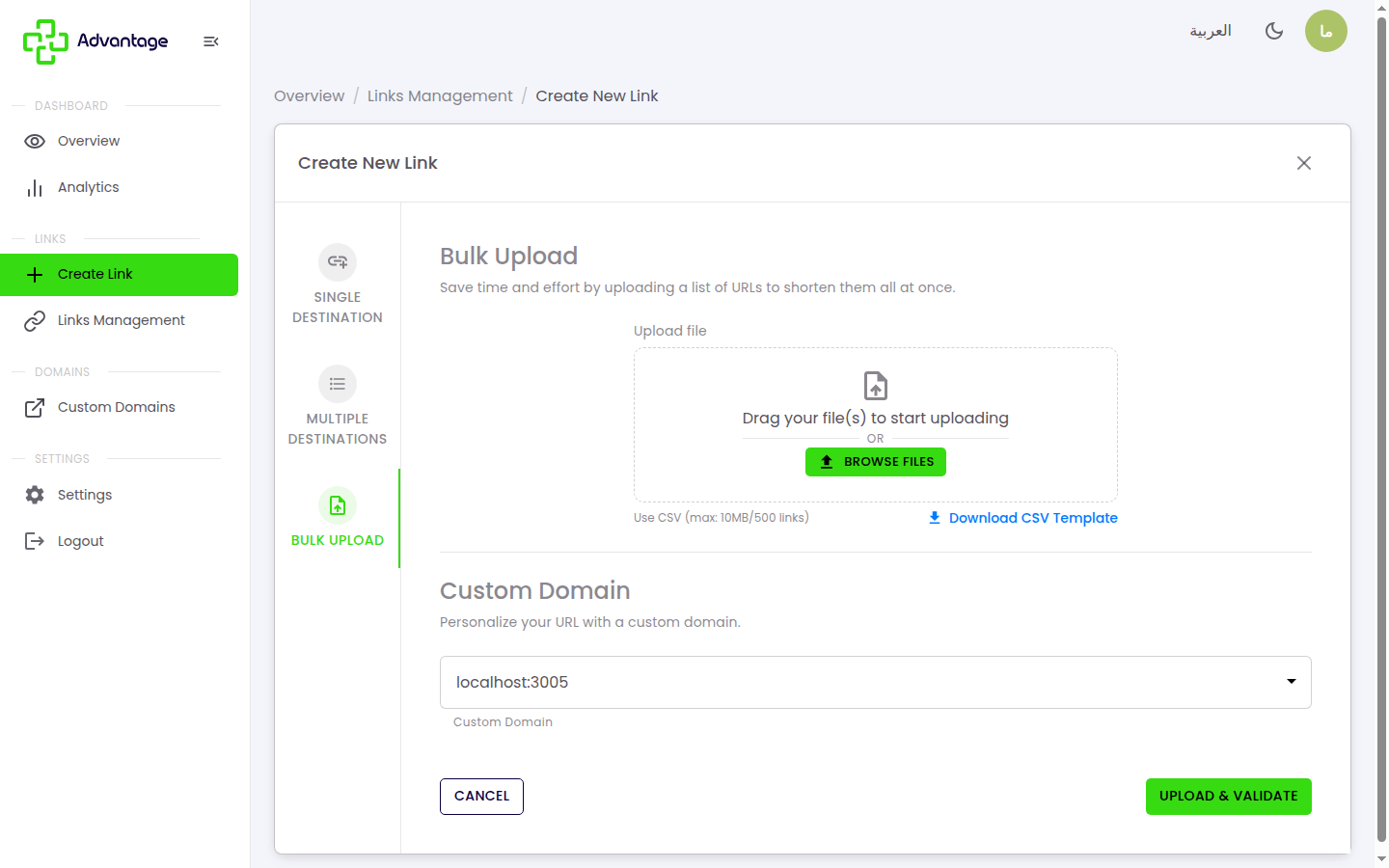
The number of links you can create — including bulk-upload rows — counts against your plan's quota. If your file exceeds the remaining quota, the action is blocked until you upgrade.
Good to know
Which columns are required? Only URL is required. Slug, name, and the UTM columns are optional.
What happens to rows with errors? They're reported back to you, but the valid rows still import — you don't lose the whole file over one bad row.
What file format can I upload? CSV only (Excel / .xlsx files are not accepted), with a maximum file size of 5 MB.
Tips & pitfalls
Tip: Save the file as UTF-8 so Arabic names import correctly.
Warning: Duplicate or invalid slugs are rejected — check the results summary after uploading.
Next steps
- Create a normal link — to create a single link instead of a file.
- Managing links — to review and edit the imported links.