Organization & team
Overview
Manage your team members from the Team Management page: invite new people, assign each a role, and track their status.
When to use it
- You want to invite a colleague to join your organization.
- You want to review who has access and what role they have.
- You want to invite several people at once when onboarding a whole team.
Before you start
- You need a role that allows managing the team (Owner or Admin).
- Have the email address of the person you want to invite ready.
Step by step
-
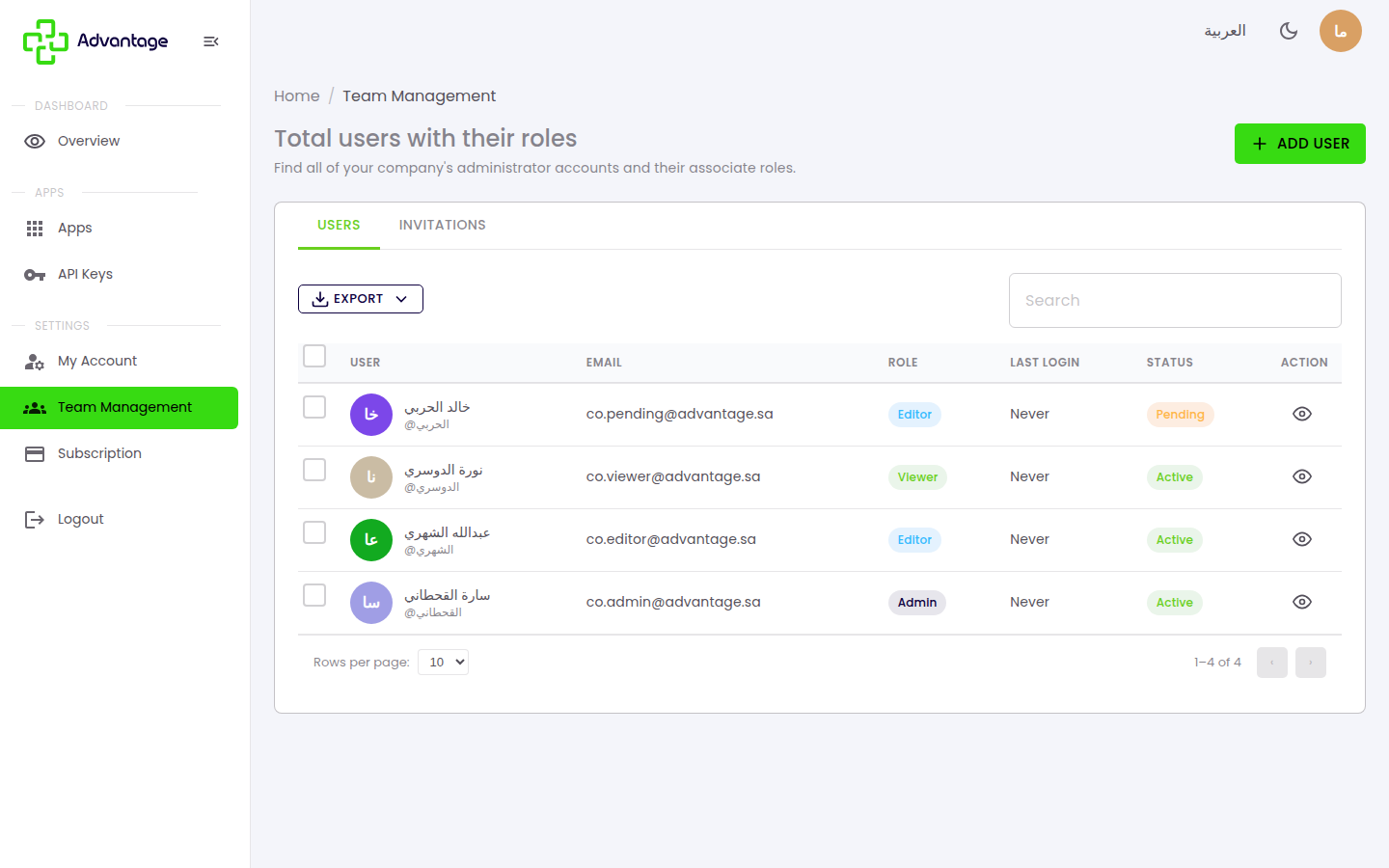
Open Team Management from the sidebar. It lists members with their Role (Owner / Admin / Editor / Viewer) and Status — which is tri-state: Active, Pending, or Inactive — with tabs for Users and Invitations. There are 4 filters to narrow the list. You (the currently-logged-in user) are excluded from the list.
-
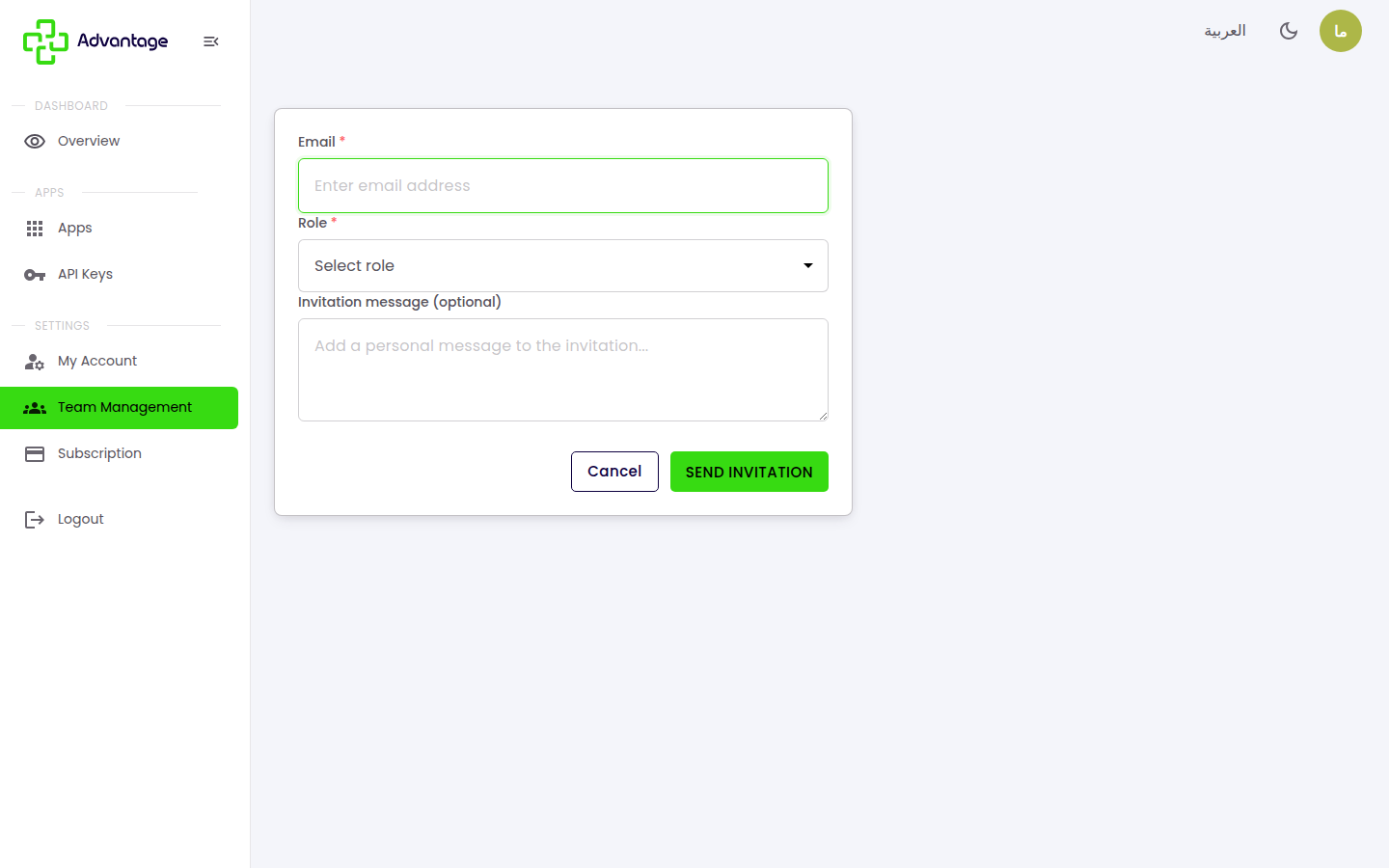
To invite a member, choose Add User, enter the person's email, and pick a role. They get an email invite and appear as Pending until they accept. Invitations expire after 24 hours. From the Invitations tab you can manage pending invitations — resend or cancel them.
-
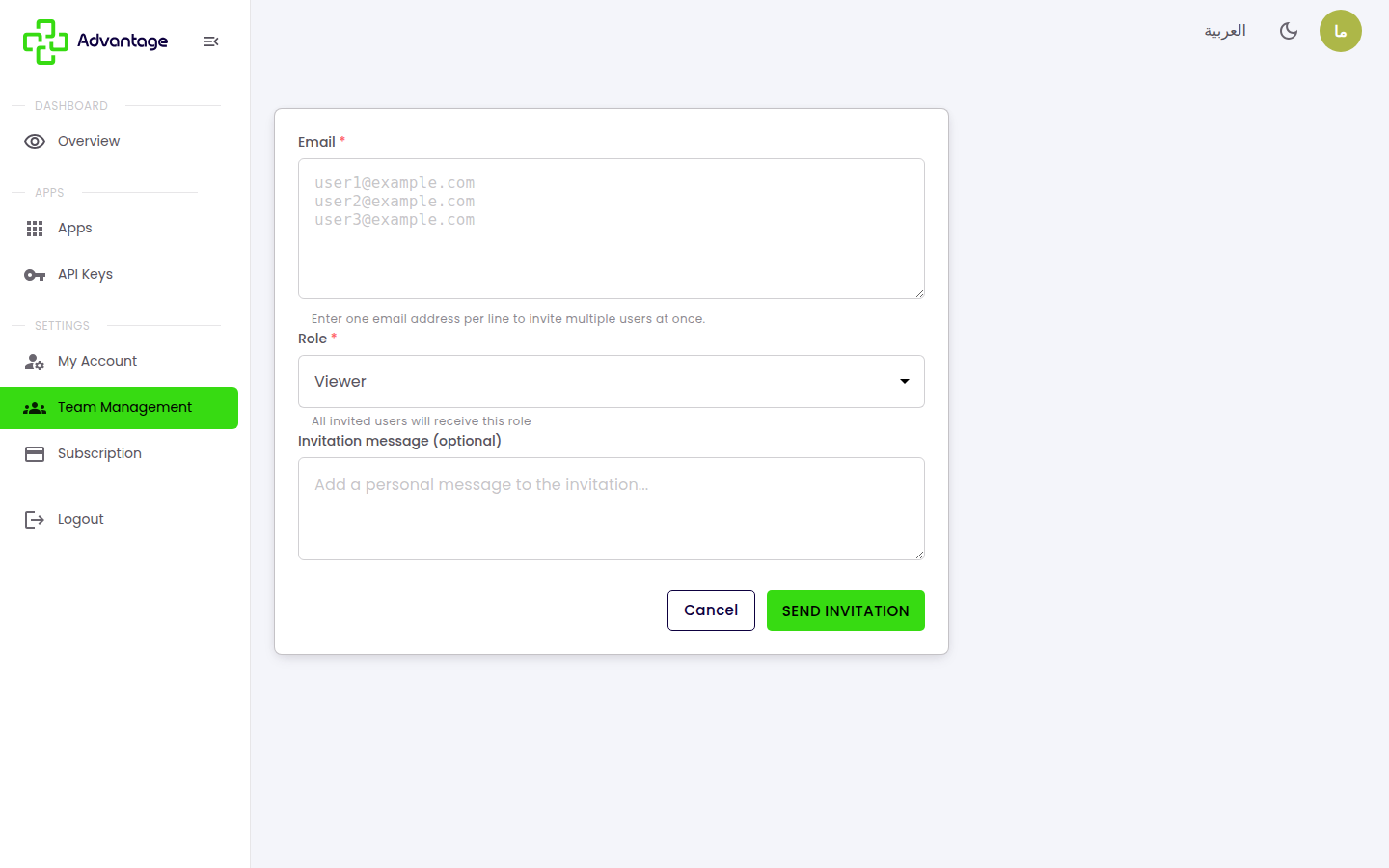
To bulk invite, invite several people at once by entering multiple emails (with roles) on the bulk-invite screen.
Roles and permissions
You assign each member a role when you invite them, and it determines what they can do. There are four roles:
| Role | What they can do |
|---|---|
| Owner | Full control: all features, subscription & billing, and team management. (The subscription area is owner-only.) |
| Admin | Manage the team, content, and settings, and edit organization & billing details — but not the subscription area itself. |
| Editor | Create and edit content (links and surveys) — but not manage the team or billing. |
| Viewer | Read-only: view dashboards and content, but can't create, edit, or delete. |
Any member can see their role's exact permissions under My Profile → Roles and permissions (a View / Create / Modify / Delete matrix per area). See Your profile.
Good to know
What do the three member statuses mean? Active: they've accepted and can sign in. Pending: they haven't accepted the invitation yet. Inactive: their access is disabled and they can't sign in until reactivated.
What happens if an invitation expires? Invitations expire after 24 hours. Resend it from the Invitations tab so the member gets a fresh link.
When should I use bulk invite? When onboarding a whole team — bulk invite is faster than inviting each person one at a time.
Where are my organization's legal and billing details? Under My Account → Organization & billing in your profile. To manage the subscription, go to Subscription & billing.
Tips & pitfalls
Tip: Give each person the least access they need to do their job.
Warning: Invited people can't sign in until they accept the email invite, and invitations expire after 24 hours.
Next steps
Manage your organization's plan and payments in Subscription & billing.