Apps & API keys
Overview
Register your apps and create API keys to connect the SDK or make server-to-server calls.
When to use it
- You're connecting the SDK in your app to track events.
- You need a key for programmatic, server-to-server calls to Advantage.
Before you start
- This feature is for developers connecting the SDK or calling the API.
- Have a descriptive name ready for the key so you know later where it's used.
Step by step
-
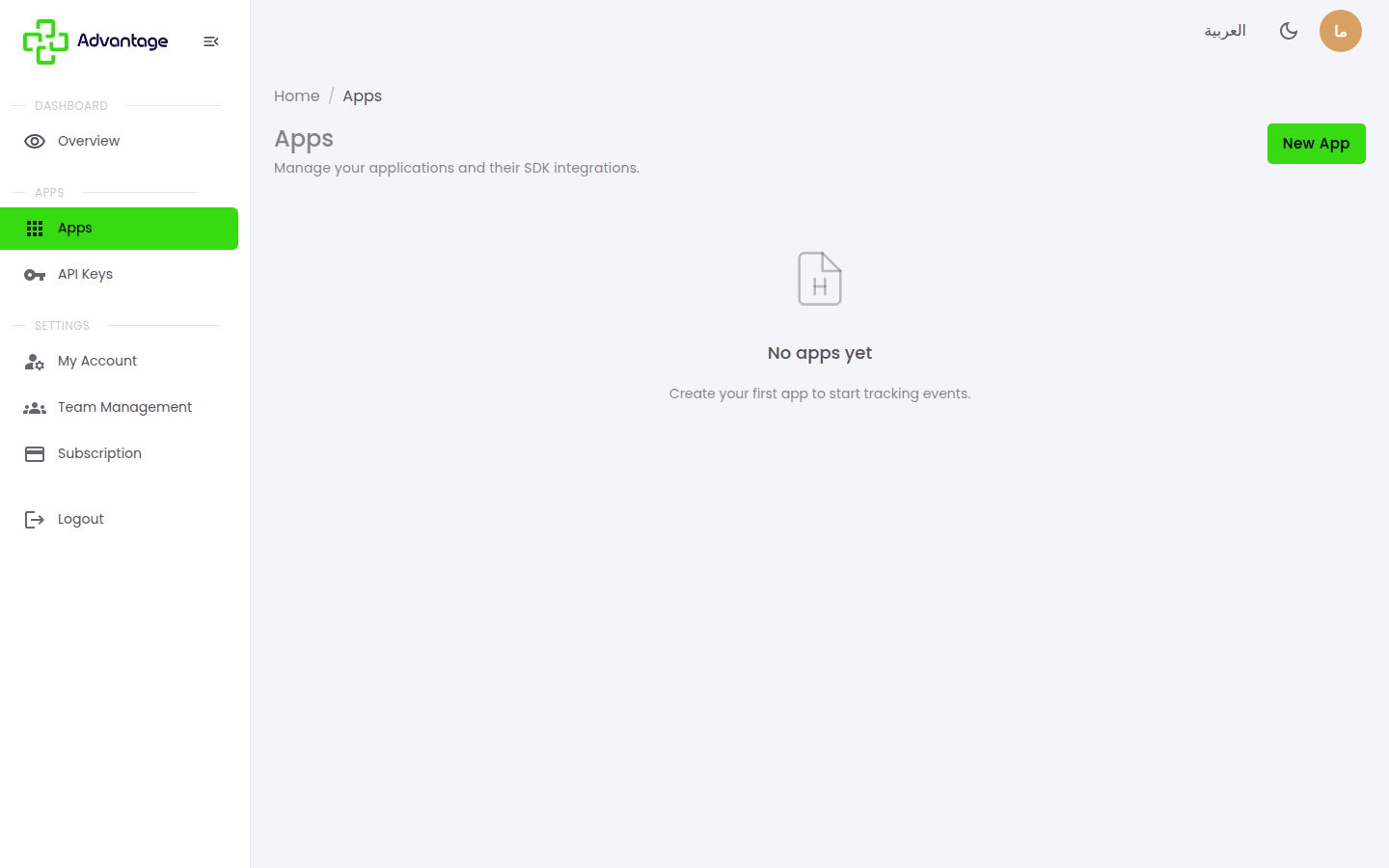
Open Apps from the sidebar. An app represents one of your integrations (SDK or event tracking). If you don't have any apps yet, you'll see the empty state "No apps yet". Choose New app to register a new integration. Creating a new app automatically creates an API key for it.
-
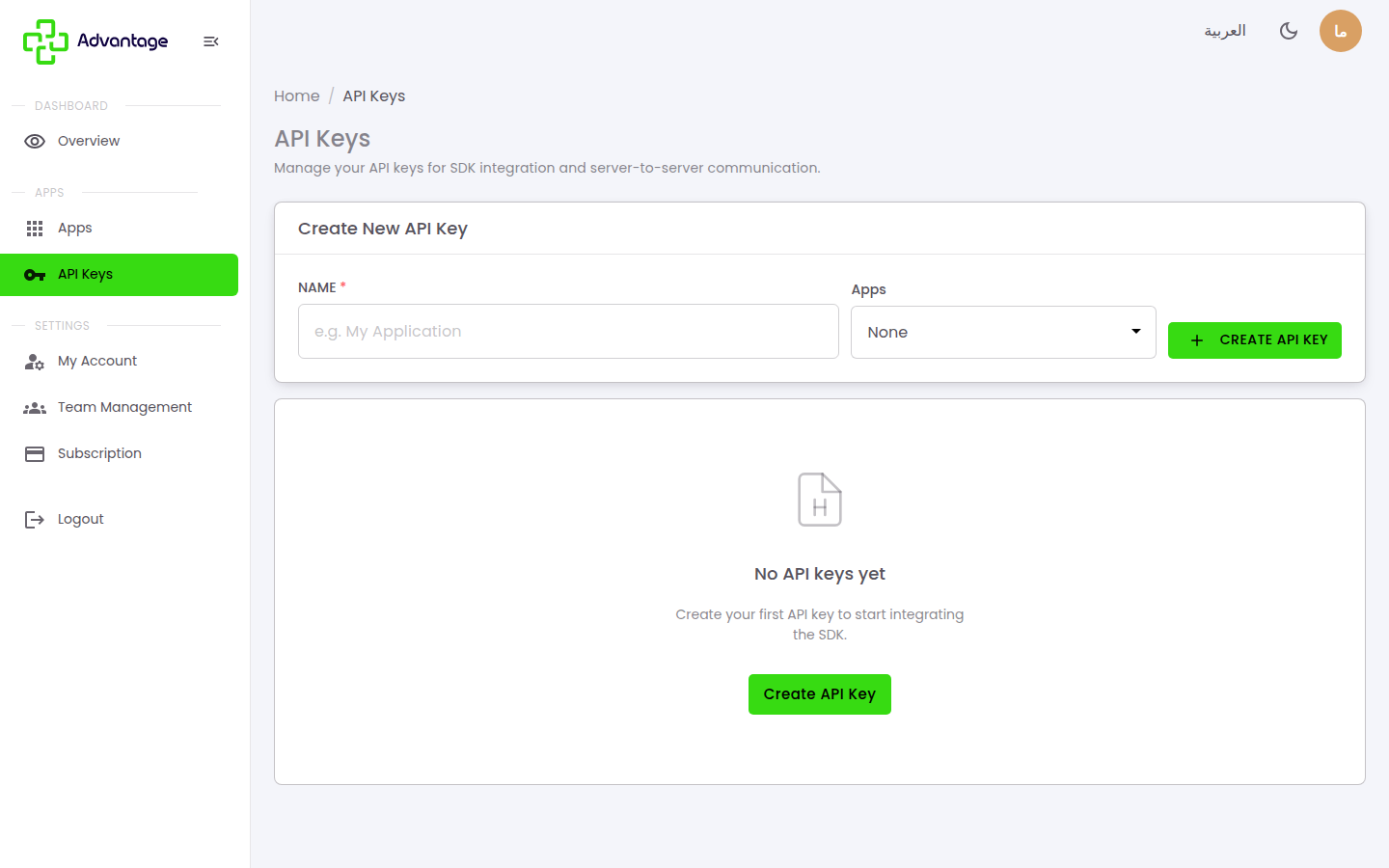
Open API Keys from the sidebar. In the Create New API Key form, enter a name for the key, optionally link it to an app from the dropdown, then choose Create API Key. You can copy the key again at any time later, and each key has two actions: Revoke and Regenerate.
Good to know
Who is this feature for? Developers connecting the SDK or calling the API server-to-server.
Can I copy the key again later? Yes. The key is re-copyable at any time — it isn't a shown-once secret.
What do I do if a key leaks? Use Revoke to disable it immediately, or Regenerate to replace it with a new one.
Tips & pitfalls
Tip: Name keys by where they're used (e.g. "Mobile app – production").
Warning: Treat API keys like passwords — never share them or commit them to public code; if a key leaks, revoke or regenerate it right away.
Next steps
Review your plan and its limits in Subscription & billing.